
OnePlus phones are known for their sleek design, powerful performance, and impressive features. One useful tool in these devices is the call recording feature, which is beneficial for those who want to keep records of important conversations. One of the standout features is the Recording Summary, which provides a quick overview of recorded calls, making it easy to review and manage recordings. In this article, we’ll cover everything you need to know to enable Recording Summary on your OnePlus phone and optimize your experience with call recordings.
What Is the Recording Summary Feature?
The Recording Summary feature on OnePlus phones is designed to make managing recorded calls easier by offering a convenient, organized overview of each recording. Instead of having to scroll through a list of files to find the recording you need, this feature displays key details in a summarized view.
With Recording Summary, you can see essential information such as the date and time of the call, the contact’s name or phone number, and the duration of the conversation, all in one place. This streamlined layout lets you quickly locate and review important calls, making it especially useful for business professionals, students, or anyone needing to track significant discussions. By providing a snapshot of your recorded calls, Recording Summary saves you time and helps you stay organized.
Steps to Enable Recording Summary on your OnePlus Phone
Here’s a step-by-step guide to enabling Recording Summary on OnePlus devices. Please note that the specific options may vary slightly based on the OnePlus model and the version of OxygenOS running on your device.
- Go to Phone Settings.
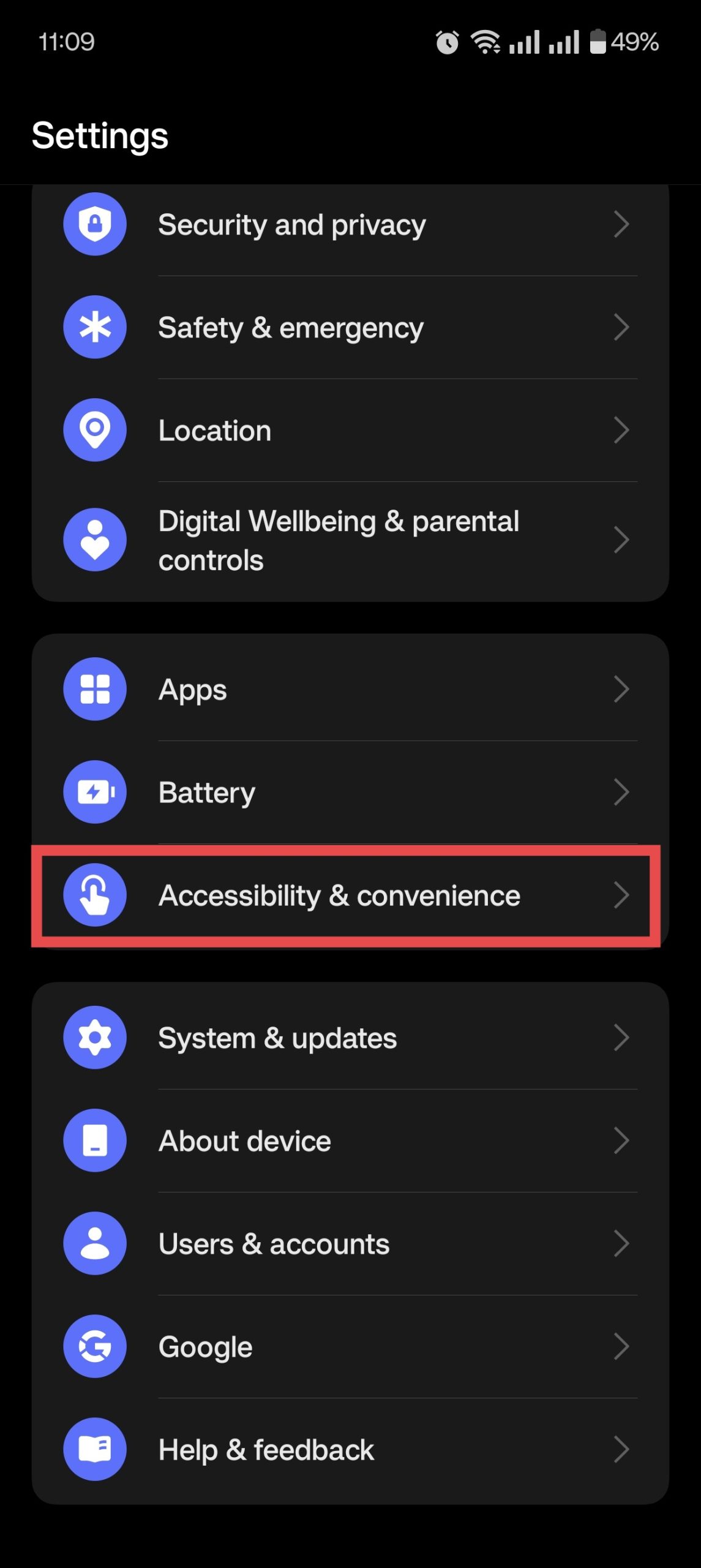
- Scroll down, and select Accessibility & convenience.
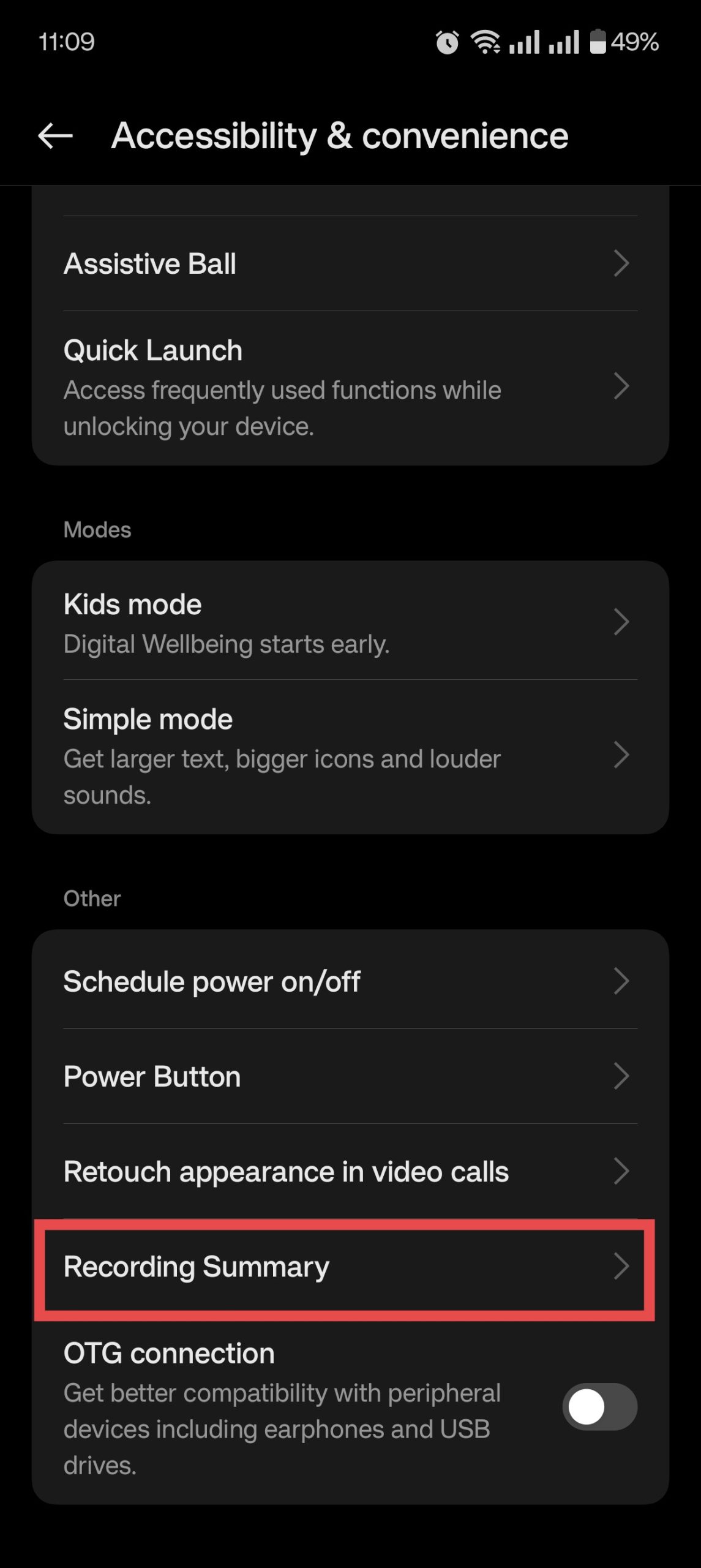
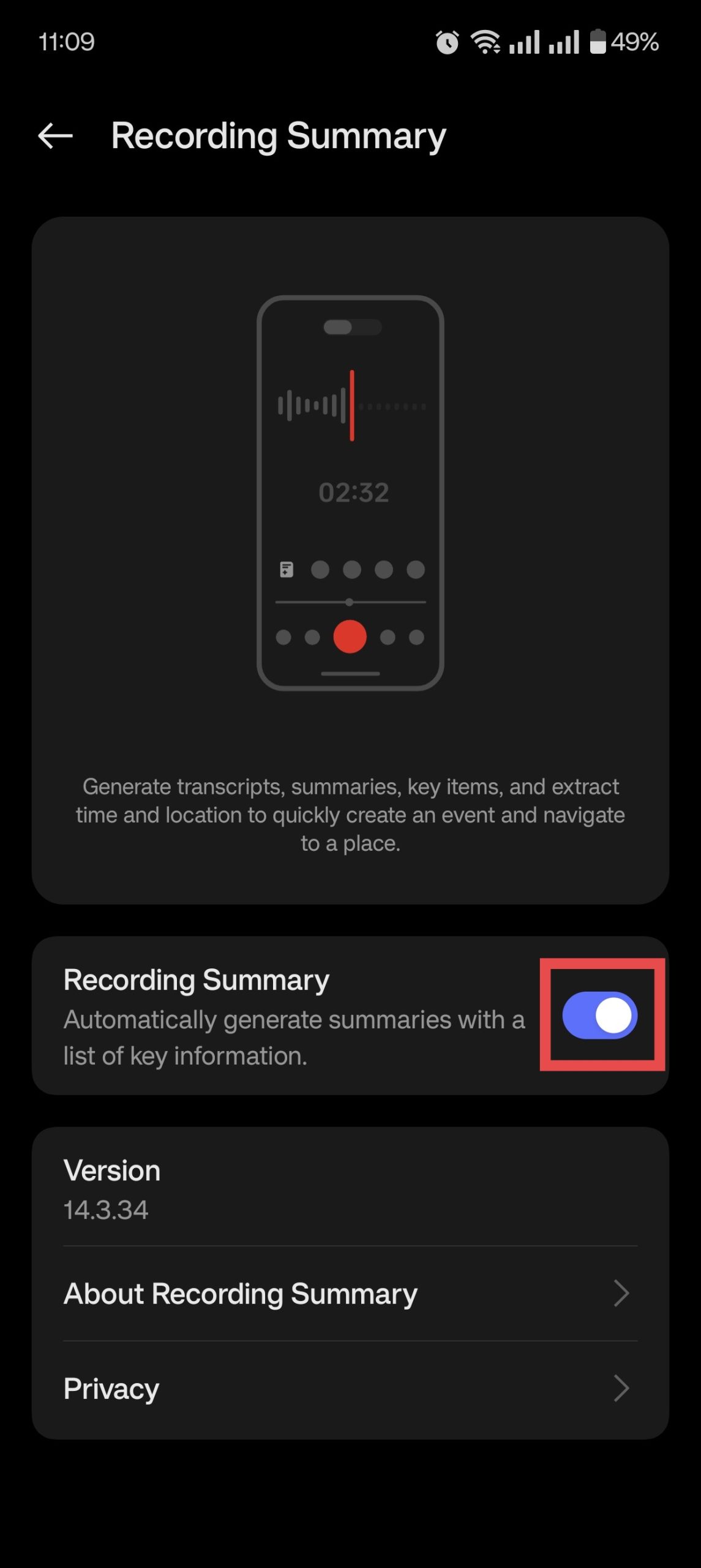
- Select Recording Summary and enable the option from the next screen.
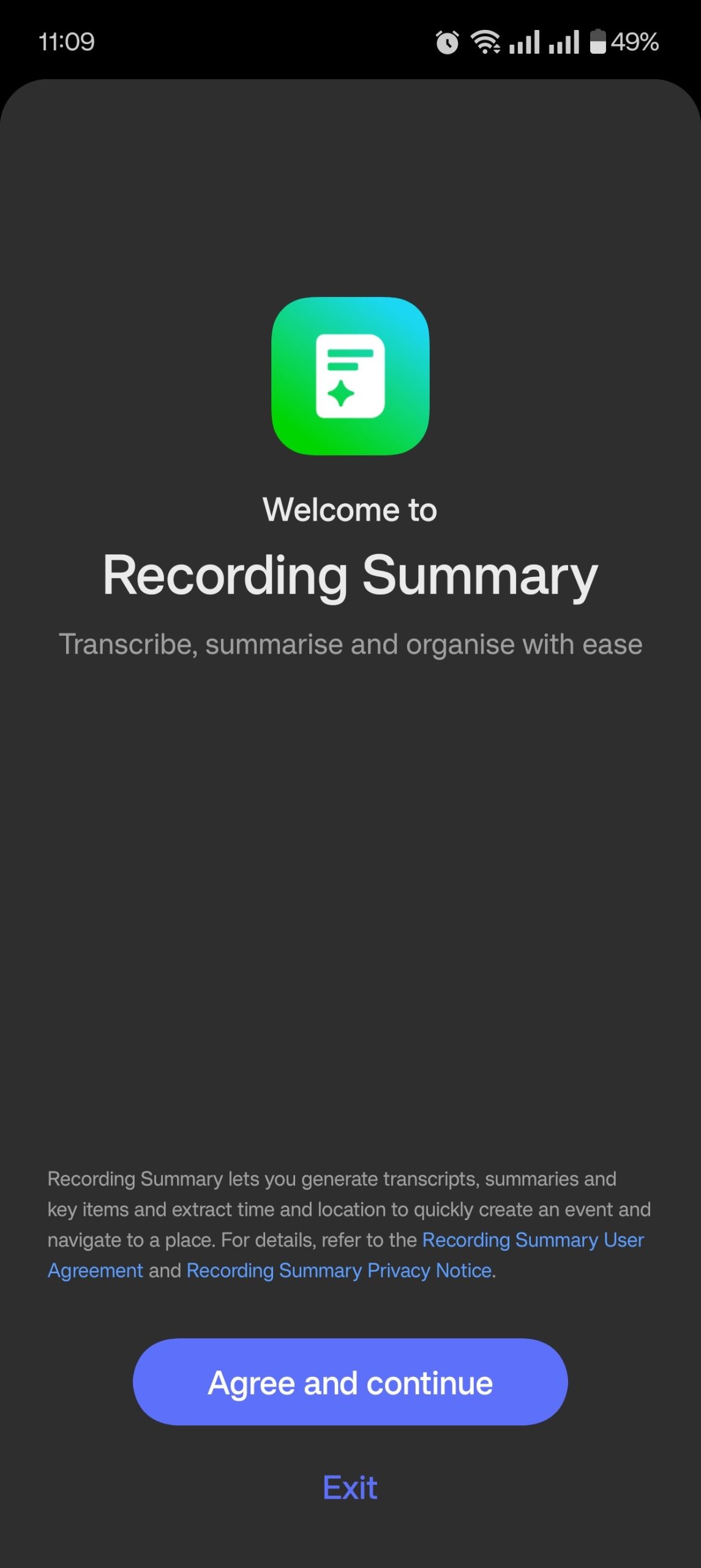
- Click Agree and continue.
- Done! You can now easily manage and review your recordings through the Recording Summary feature.
Final Thoughts
The Recording Summary feature is a powerful tool for anyone who relies on call recordings for personal or professional use. By following these steps, you can enable it and enjoy the convenience of summarized call recordings on your OnePlus device.
Stay updated for more tips and tricks on optimizing your OnePlus experience!
