
Snapchat has always been more than just a messaging app — it’s a personal archive of moments, stories, and memories that define your digital life. From spontaneous selfies to milestone celebrations, Snapchat Memories has allowed users to save and relive their favorite Snaps without worrying about space.
But that’s about to change. Snapchat is rolling out a new 5GB storage limit for free accounts, which means users could soon face tough choices: upgrade to a paid plan, delete old content, or risk losing access to years of saved Memories. If you’ve used Snapchat for a long time, acting now is crucial.
This guide explains everything you need to know about the update — what’s changing, why it matters, and most importantly, how to save your Snapchat Memories before the new storage limits take effect.

Understanding the New Snapchat Storage Policy
Until now, Snapchat offered virtually unlimited cloud storage for saved Snaps and Stories. The platform handled all your memories automatically, making it easy to revisit old moments whenever you wanted.
But with the new update, free users will receive only 5GB of cloud storage for Snapchat Memories. Once that limit is reached, you’ll need to purchase additional storage through a premium plan or delete older content to free up space.
While 5GB might sound like a lot, users with years of Snaps, videos, and Stories could easily exceed that. Snapchat has confirmed a gradual rollout, so it’s best to prepare early.
Why You Should Save Your Snapchat Memories Now
Your Snapchat Memories aren’t just digital files — they’re personal moments, milestones, and inside jokes that tell your story. Losing them would mean losing irreplaceable experiences.
Saving your Snapchat Memories gives you control over your content, letting you organize, access, and back it up on your own terms. Even if Snapchat updates its storage model again, your exported copies will remain safe.
By acting now, you’ll prevent potential data loss when the new policy activates. A few minutes of preparation today can preserve years of memories permanently.
Step-by-Step Guide: How to Save Your Snapchat Memories
Snapchat provides built-in tools to back up your Snaps safely. Follow these steps to secure your content before the new limits take effect:
Step 1: Check Your Backup Status
Before exporting, check whether all your Snaps have been backed up to the cloud.
- Open Snapchat and go to your profile.
- Tap the ⚙️ Settings icon and scroll down to Memories → Backup Progress.
- If it says “Complete,” all your Memories are safely stored. If not, connect to Wi-Fi and let Snapchat finish backing up your Snaps.
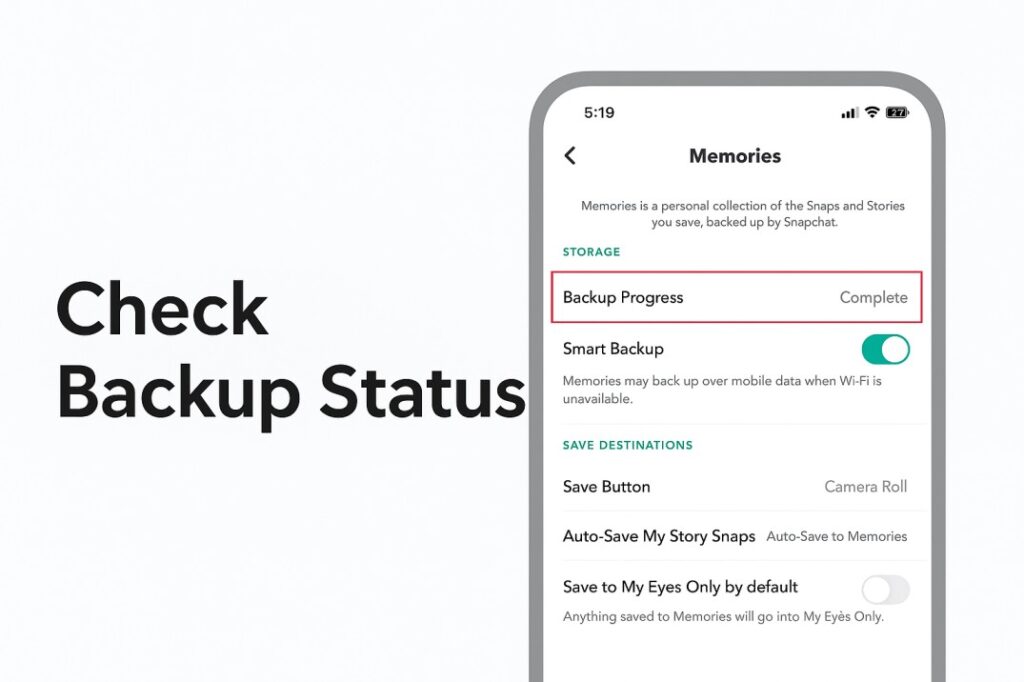
Once your backup is complete, you’re ready to export and save your content permanently
Step 2: Export Your Snapchat Memories
The most reliable way to secure your Snaps is to export them to another platform or device.
- Go to Memories within Snapchat. Press and hold on any Snap or Story you want to save, then select Export Snap.
- Choose a destination — such as your Camera Roll, Google Photos, Dropbox, or iCloud Drive.
- For multiple Snaps, tap and hold one item → select others → tap Export to download in bulk.
- Confirm the files appear in your chosen storage location before proceeding.
This ensures that all your favorite moments are safe even if Snapchat’s cloud storage becomes restricted or inaccessible.
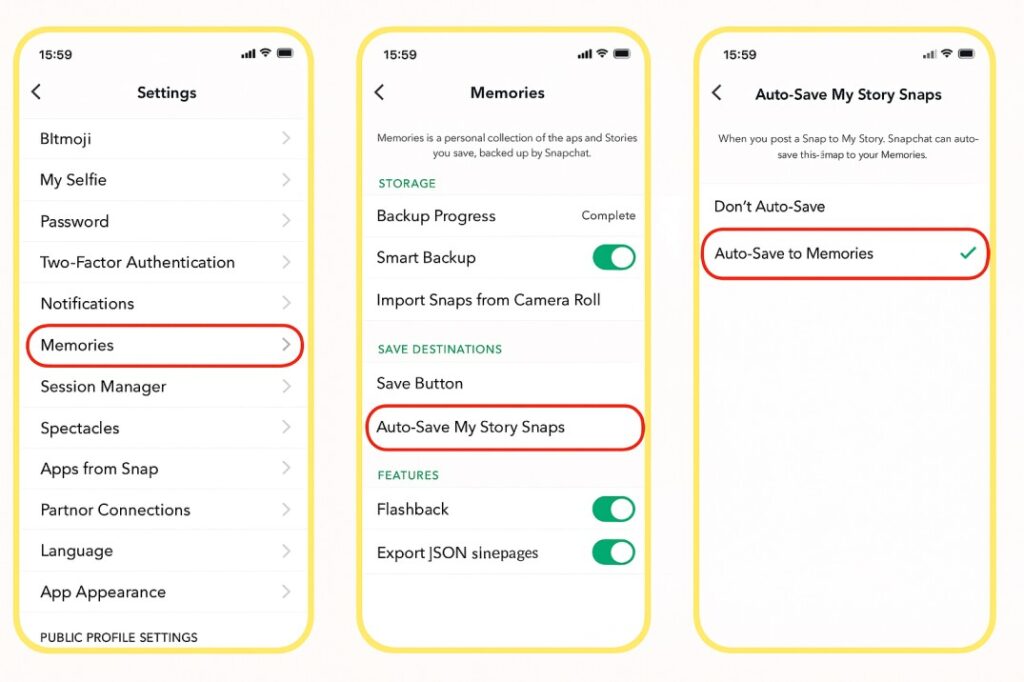
Step 3: Enable Auto-Save for Future Snaps
Prevent future loss by setting Snapchat to automatically save every new Snap locally. Go to Settings → Memories → Save Destination, then choose Camera Roll Only or Memories & Camera Roll.
By enabling this, every photo or video you take will automatically save to your phone or both your device and the cloud, ensuring continuous backups regardless of future policy changes.
Step 4: Manage Storage by Deleting Unneeded Snaps
If you’d rather stay within the free 5GB limit instead of upgrading, now is a good time to clean up your Memories. Delete unnecessary Snaps, repetitive videos, or outdated Stories that no longer hold meaning.
Start with large files like videos or long Stories, as they consume the most space. You can also clear your cache from Settings → Clear Data → Clear Cache to free up local storage on your phone.
Regular cleanup not only helps you stay within the limit but also keeps your app running faster.
Step 5: Organize and Secure Your Exported Files
After exporting, store your files in a structured and secure way. Create folders based on years, events, or people, and give each folder descriptive names. This makes browsing your saved content easier later.
You can even keep duplicate copies of your exported Snaps — one on your device, one in cloud storage, and one on an external drive. This redundancy guarantees that even if one copy gets lost or corrupted, you’ll always have a backup.
Pro Tips and Why Acting Early Matters
It’s easy to delay backups, but once the 5GB policy fully rolls out, users over the limit risk losing older Snaps. Acting early ensures smooth data migration and avoids last-minute panic.
- Export your Memories early to avoid data loss.
- Keep multiple backups, both online and offline.
- Check storage status regularly to stay under limits.
- Delete duplicates or unnecessary Snaps periodically.
- Store critical Memories in high-quality formats (MP4, JPEG).
Don’t wait until your data is locked or deleted. A few minutes today ensures peace of mind tomorrow.
Best Backup Solutions for Snapchat Users
To keep your Snapchat Memories safe beyond the new 5GB limit, it’s best to back them up using trusted storage solutions. Google Photos and iCloud Drive are the most convenient options — Google Photos works seamlessly across Android and iPhone, offering automatic sync and smart organization, while iCloud Drive securely backs up exported Snaps across all Apple devices. Both platforms make your Memories easily accessible and safe from accidental loss.
For added security, you can use Dropbox or OneDrive to store and organize Snaps across multiple devices, or save them offline on an external SSD or hard drive for complete control. Combining a reliable cloud backup with physical storage offers the perfect balance of safety and accessibility, ensuring your favorite Snapchat Memories remain protected for years to com e.
Frequently Asked Questions (FAQ)
1. Will deleting Snaps from Memories free up space?
Yes. Removing unnecessary Snaps or Stories directly reduces your used storage and helps you stay under the 5GB limit.
2. Does clearing the Snapchat cache delete Memories?
No. Clearing the cache only removes temporary files stored locally on your device. Your saved Memories remain intact in the cloud or on your phone.
3. Do “My Eyes Only” Snaps count toward the storage limit?
Yes, they do. Snaps in “My Eyes Only” are simply protected by a PIN — they still occupy cloud space. To back them up, open the section, export your chosen Snaps, and save them to a secure folder or encrypted drive.
4. Can I export all my Memories at once?
Snapchat doesn’t offer a single “export all” option, but you can batch-export by selecting multiple items per month or event in the Memories section.
5. Will the new Snapchat storage limits apply globally?
Yes. The 5GB storage limit is rolling out worldwide, though timelines may vary by region. It’s best to back up your data before the rollout reaches your area.
Final Thoughts: Don’t Wait to Save Your Snapchat Memories
Your Snapchat Memories are fragments of your digital life — from candid moments to milestones. With the 5GB storage limit approaching, taking action now is the smartest move.
Follow this guide to save and organize your Snaps, then back them up across multiple platforms for long-term safety. Whether you use free tools like Google Photos or secure cloud options like Dropbox, your memories will remain protected and truly yours.
Take charge of your Memories today — and never lose a moment that matters.
