
Apple Mail, or Mail, is the native email client that comes pre-installed on every Mac/iMac. It automatically saves email messages from the configured email account as an MBOX file in its root directory on the Mac. It also saves a copy of email messages as EMLX files in a separate directory on the system.
If you have switched from a Mac to a Windows 11 PC for personal use or your organization is migrating its users to Outlook as part of an IT refresh, there are several ways to migrate Apple Mail emails to Windows 11. Whether you need to view Apple Mail email messages in an MBOX-compatible email client or move them into Outlook (Classic or New), you should find the methods explained further helpful. Let’s read further.
Reasons to Migrate Apple Mail Email Messages to a Windows 11 Computer
Below are some of the reasons to transfer Apple Mail emails to a Windows 11 PC:
- Moving from a Mac to a Windows 11 PC for personal use or to meet business needs
- Want to access old Apple Mail emails in MS Outlook
- Consolidate email messages from Apple Mail with the existing mailbox data in Outlook
- Want to migrate Mac Mail emails in Mozilla Thunderbird or any other MBOX-supporting email client without converting to PST
Methods to Migrate Apple Mail to Windows 11
There are several ways you can use (depending on your use) to migrate Apple Mail to Windows 11. For individual email messages, you can simply transfer the EMLX files to a Windows system and open them via Notepad. In case you have MBOX files, you can use an MBOX-supporting email client like Mozilla Thunderbird to open and access the emails on your Windows 11 PC.
If you are an IT admin and want to migrate all the Apple Mail users in your organization to Windows Outlook (Classic or New), then transferring EMLX files from every account would be a tedious and inefficient way. Instead, you can convert the exported Mac Mail MBOX file to Outlook-importable PST format using an MBOX to PST converter. Let’s explore both methods in detail.
Method 1: Open Apple Mail Emails (EMLX files) on Windows 11 PC
You can transfer Mac Mail email messages to a Windows PC and open them using Notepad, as they are plain-text files. MS Outlook also supports this file format, so you can use it to open your Apple Mail email messages. This method is suitable if you want to quickly view Apple Mail email messages. Here’s what to do:
Step 1: Locate EMLX files on Mac and Transfer them to a Windows PC
- On your Mac, click on Go and then Go to Folder.
- Type ~Library/Mail and press return.
- Locate the Vx Folder. It contains the Mac Mail data. Open it.
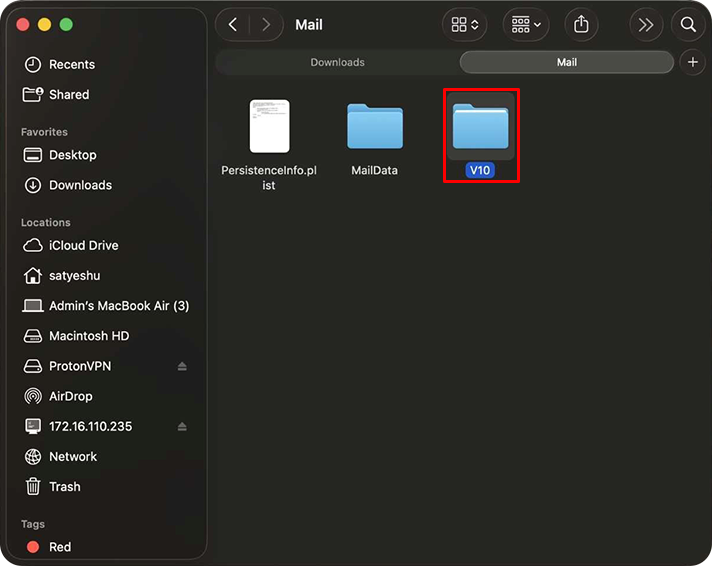
- Locate the sub-folder with a hexadecimal name. Open it.
- You will see an MBOX folder corresponding to the configured email account.
- Open it and then open the sub-folders until you reach a screen that shows two folders: “Attachments” and “Messages.”
- Open the Messages folder. Here, you’ll see all the email messages in that folder saved as EMLX files.
- Copy them and transfer them to a Windows PC via cloud or external storage.
Step 2: Open EMLX Files in Windows Outlook
- Paste the Mac Mail EMLX files on your Windows PC.
- Select an email message file and right-click on it.
- Click on Open With and then select Notepad or MS Outlook
- Your email message will open on a Windows PC.
Limitations:
Here are some limitations of this method:
- EMLX files have a generic “numerical” name, i:e., the file names are random numbers instead of a word. This makes it difficult to identify the right email.
- This method is only suitable for transferring email messages. Other mailbox items like contacts, calendars, Tasks, and more cannot be transferred.
- As EML files are plain-text files, they are saved as individual files, without following the hierarchy in the source file. Therefore, the mailbox structure is lost.
- EMLX file, when opened with Notepad, is difficult to comprehend because it contains metadata of the email message along with other information.
- While opening EMLX files in Outlook, you may encounter problems like missing message body, attachments, or other elements like To, Cc, Bcc, etc. This happens when the required add-in is not installed.
Method 2: Open Apple Mail MBOX using a Supporting Email Client
You can also use an MBOX-supporting email client like Mozilla Thunderbird on your PC to open Apple Mail emails. All you have to do is export the mailbox data as MBOX files and transfer them to a Windows PC. Then import them into the Thunderbird client. Let’s see how it is done.
Step 1: Export Apple Mail Emails to MBOX File
Here’s how you can export your Apple Mail emails as an MBOX file:
- Launch Apple Mail (Mail) on your Mac.
- Select the mailbox folder and click on Mailbox > Export Mailbox.
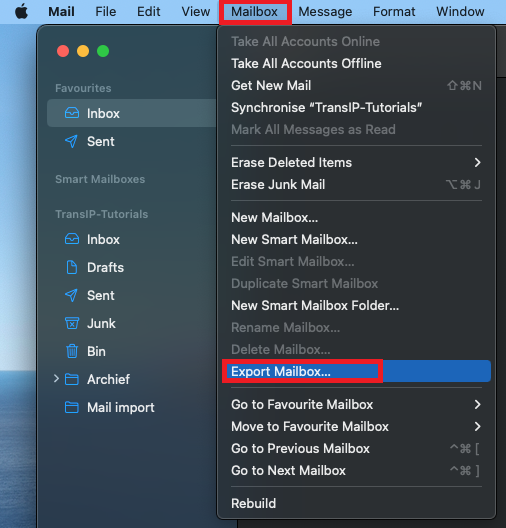
- Choose any location on your Mac to save the exported MBOX file.
- Click Choose to begin the export.
- The wizard will export all the emails of the selected mailbox folder as an MBOX file at the selected location.
Step 2: Import Apple Mail into Mozilla Thunderbird
Now, transfer the exported MBOX file to a Windows PC. Then install Mozilla Thunderbird and use the ImportExportTools NG add-on in Thunderbird to import the Mac Mail mailbox file into it. Once you have imported the selected file in Thunderbird, verify the emails and the mailbox folders.
Method 3: Use an MBOX to PST Converter
To migrate Apple Mail emails to Outlook (New or Classic), you will need to convert the exported Mac Mail MBOX file to Outlook-importable PST format.
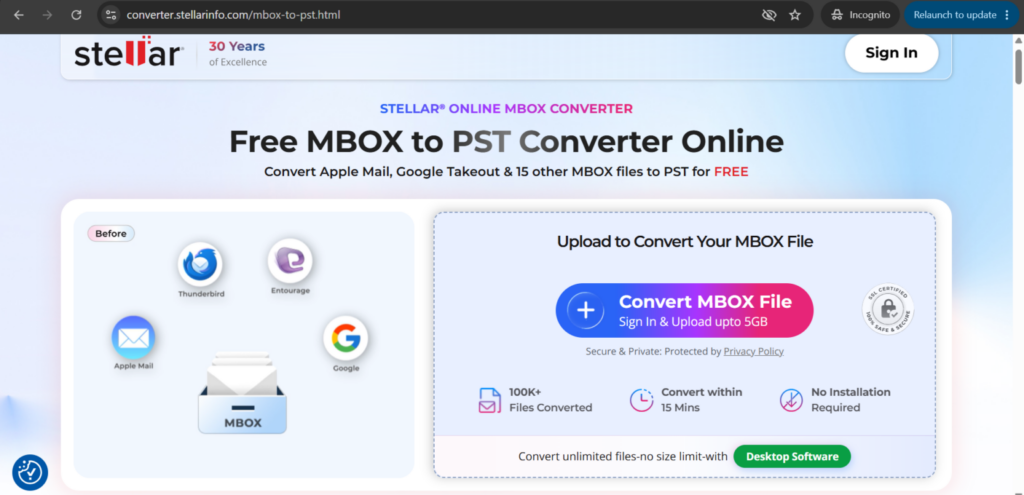
If you want to quickly convert your Apple Mail MBOX file to Outlook PST without installing a software, you can do so with the help of the web-based MBOX to PST converter by Stellar. It lets you convert a single MBOX file of size 100 MB or less to PST format for free. You can use it in a web browser on any Windows, Mac, or Linux device to convert your mailbox data securely. It automatically removes the uploaded and converted mailbox files from its servers after 24 hours, thus ensuring that your mailbox data and privacy are safe. This online MBOX to PST converter works in 3 simple steps: Upload > Convert > Download. For converting large mailbox files, you can upgrade to the Premium edition, which allows you to convert up to 5 MBOX files of size not larger than 5 GB.
Whether you are an individual moving mailbox data from your Apple Mail account to Outlook or a user who wants to move multiple Apple Mail MBOX files to a Windows 11 PC or directly to Outlook, you can use a Stellar Converter for MBOX desktop edition to convert them. It is a powerful desktp tool that converts Apple Mail MBOX to Outlook PST format on your Windows PC. It allows you to preview emails and other mailbox items like attachments, contacts, calendars, etc., after conversion. You can also use it to directly export Apple Mail email messages to an existing Outlook profile.
Stellar Converter for MBOX can convert MBOX files from other email clients like Google Takeout (Gmail), Mozilla Thunderbird, Opera Mail, PocoMail, etc., to PST file format with 100% data integrity and precision.
Some salient features of Stellar Converter for MBOX:
- Converts MBOX to PST with 100% accuracy
- Ensures complete mailbox data migration, including contacts, tasks, notes, and calendars
- Save mailbox data as other commonly used file like EML, MSG etc.
- Directly export MBOX file to an existing Outlook profile
- Apply advanced filters to select mailbox data based on date range or sender’s email ID
- Auto splits converted large PST file (more than 45GB) into smaller-sized PST files
- Exclude Deleted or Spam/Junk items before saving the mailbox data
- Intuitive user interface (UI)
- Directly migrate Thunderbird to a Microsoft 365 account (Technician edition).
Conclusion
The right way to migrate Apple Mail data to Windows 11 depends on whether you need to access a few emails quickly or migrate the data into Outlook. In this article, we’ve explored different ways that you can use to migrate Apple Mail email messages to Outlook. The manual methods discussed above are tedious and time-consuming.
You can easily migrate emails from Apple Mail to a Windows PC using Stellar Converter for MBOX. It is an advanced tool that lets you convert an MBOX file to PST format with 100% data accuracy and without altering the mailbox structure. You can also use Stellar’s online MBOX to PST converter, which is a web-based service that lets you quickly convert a single MBOX file (of size up to 100 MB) to PST format for free.
